People often run into config.toml in Codex CLI before they have a clear picture of what it actually does.
So start with the simple definition: config.toml is the file where Codex CLI keeps persistent settings.
It is not special because of the name. It is special because it lets you stop repeating the same setup in every session.
What config.toml is
The word breaks down like this:
configmeans configuration.tomlis a text format designed for readable configuration files
That makes config.toml a human-readable settings file for tools and applications.
In Codex CLI, it is where you define things like:
- profiles
- sandbox defaults
- approval behavior
- MCP server integrations
Where the file usually lives
On macOS and Linux, the standard location is:
~/.config/codex/config.toml
On Windows, it is commonly placed under the roaming application data directory:
%APPDATA%\codex\config.toml
If the file does not exist yet, creating it yourself is usually fine.
A practical example
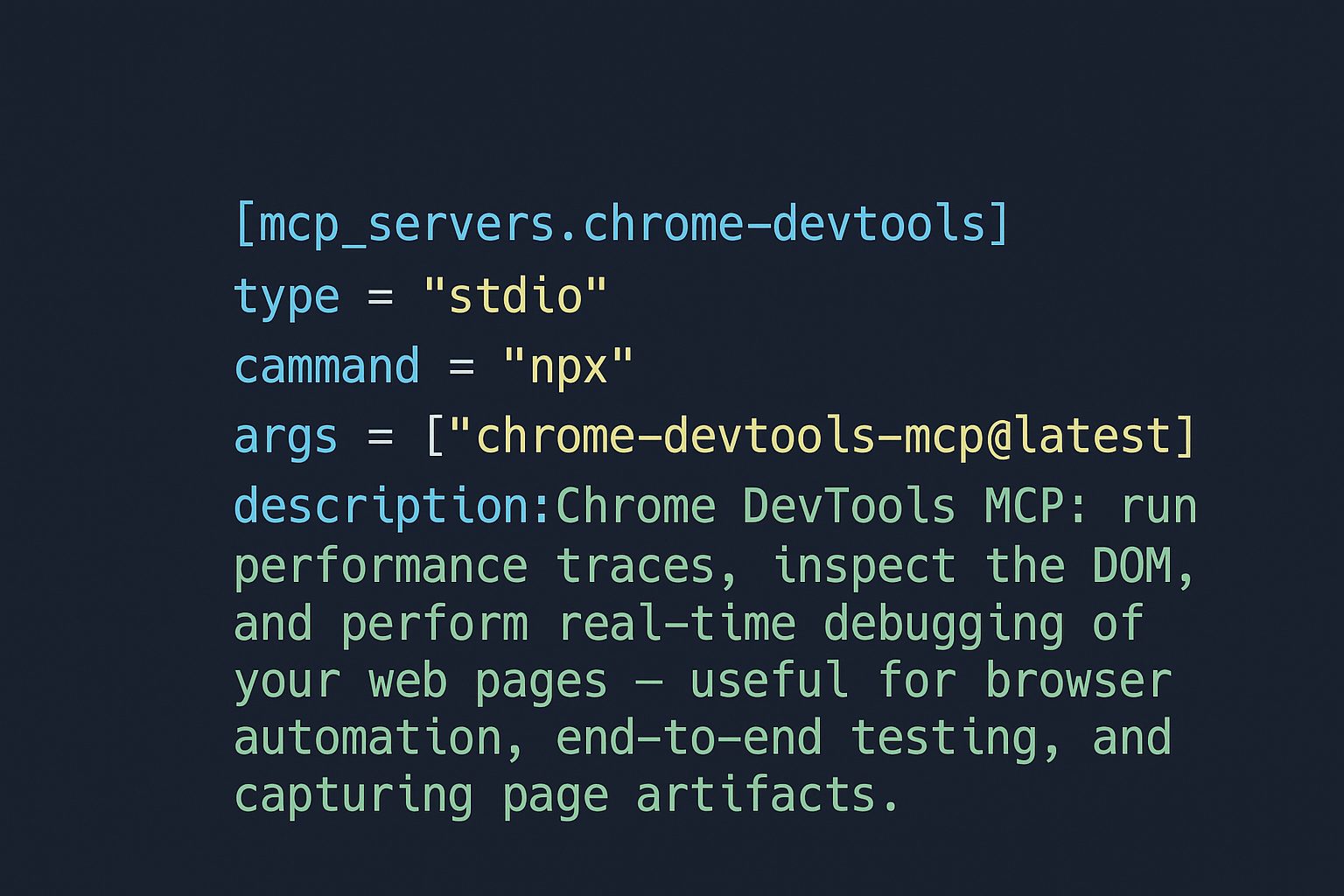
One useful pattern is to add an MCP server for Chrome DevTools.
[mcp_servers.chrome-devtools]
type = "stdio"
command = "npx"
args = ["chrome-devtools-mcp@latest"]
description = "Chrome DevTools MCP for traces, DOM inspection, and browser debugging."
This tells Codex CLI to launch an MCP server through npx and use it for browser-focused tasks.
What each part means
[mcp_servers.chrome-devtools]
This creates a server entry named chrome-devtools inside the mcp_servers section.
type = "stdio"
The server communicates through standard input and output. This is a common way to connect local helper processes.
command = "npx"
Codex CLI will run npx to start the helper.
args = ["chrome-devtools-mcp@latest"]
These are the arguments passed to npx. In this case, it launches the latest version of the Chrome DevTools MCP package.
description = "..."
This is optional, but useful. It explains what the integration is for.
When this kind of setup helps
An MCP server like Chrome DevTools is useful when you want Codex to help with:
- DOM inspection
- browser debugging
- screenshots and traces
- end-to-end testing workflows
- page artifact collection
That makes it especially useful for frontend work.
A simple profile example
You do not need MCP to benefit from config.toml.
A profile is often the first thing worth adding:
[profiles.dev]
sandbox = "workspace-write"
ask_for_approval = "on-failure"
That lets you run:
codex -p dev -C ./project
instead of typing the same flags every time.
How to think about the file
The easiest mental model is this:
- prompts define the task
AGENTS.mddefines your standing instructionsconfig.tomldefines environment behavior
That separation keeps your setup understandable.
If you are on macOS
For a Mac user, the default place to check first is:
~/.config/codex/config.toml
If it is not there, create the directory and file:
mkdir -p ~/.config/codex
touch ~/.config/codex/config.toml
Then add only the settings you actually need.
Summary
config.toml is the persistent settings layer for Codex CLI.
If you want a cleaner workflow, start small:
- create the file in the standard location
- add one useful profile
- add MCP integrations only when they solve a real problem
That is enough to make Codex CLI feel much more stable and deliberate.
